Use SAE
Step 1: 在 http://sae.sina.com.cn/ 上创建新应用
点击 "+创建新应用" 按钮然后跟随指示操作。在"APPID"处我输入的是 "agathehello",开发语言选择Python。
下面的截图意味着创建成功。
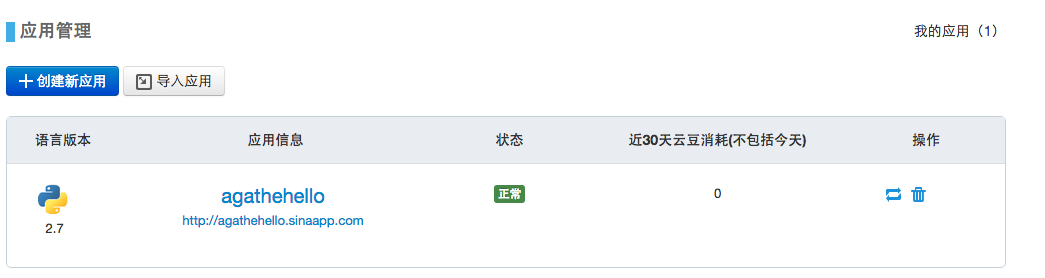
Step 2: 将应用同步到本地
localhost:Documents apple$ cd /Users/apple/Documents/PythonClass/SAE
localhost:SAE apple$ svn co https://svn.sinacloud.com/agathehello
此时按指示输入SAE的用户名(即注册时填写的安全邮箱)与密码,同步完成后得到反馈
Checked out revision 0.
应用同步成功,目录"SAE"中出现名为"agathehello"目录(注意此目录不是我手动创建的)。进入该目录,创建下一级
目录作为版本,目录的名称为应用的版本号,需为正整数。每个应用可创建多个版本,这些版本可以在线上同时运行。一般
从版本1开始,但此处用创建版本2举例。注意在浏览器访问版本2时应使用地址http://2.agathehello.sinaapp.com/。
localhost:SAE apple$ cd agathehello
localhost:agathehello apple$ mkdir 2
Step 3: 在版本目录中编辑应用代码
在本地目录SAE/agathehello/2中创建应用代码。创建应用配置文件config.yaml,内容如下:
name: agathehello
version: 2
创建index.wsgi,内容如下:
import sae
def app(environ, start_response):
    status = '200 OK'
    response_headers = [('Content-type', 'text/plain')]
    start_response(status, response_headers)
    return ['Hello, Agathe']
application = sae.create_wsgi_app(app)
Step 4: 将版本目录中所有的文件提交到svn中
localhost:agathehello apple$ svn add 2/
A         2
A         2/config.yaml
A         2/index.wsgi
localhost:agathehello apple$ svn commit -m "create config file and index file"
Adding         2
Adding         2/config.yaml
Adding         2/index.wsgi
Transmitting file data ..
Committed revision 2.
Step 5: 修改代码
假如需要修改应用版本2根目录下某个文件,完整的操作流程如下:
localhost:agathehello apple$ svn co https://svn.sinacloud.com/agathehello
A    agathehello/2
A    agathehello/2/index.wsgi
A    agathehello/2/config.yaml
Checked out revision 2.
localhost:agathehello apple$ cd 2 #This step is crucial, has to be inside the version dir before committing
localhost:2 apple$ svn commit -m "edit index.wsgi"
Sending        2/index.wsgi
Transmitting file data .
Committed revision 3.
注意若已checkout则第一条命令无需执行。
Step 6: 在浏览器中访问应用
现在,在浏览器中输入您应用的地址,就可以马上访问了;本例地址为 http://2.agathehello.sinaapp.com/
Use SAE‘s MySQL database
Step 1: 进入SAE控制台,地址为 http://sae.sina.com.cn/
Step 2: 在"应用管理"列表中选择想要管理数据库的相应应用。单击后进入该应用的管理面板。例如,我在我的
"应用管理"列表中单击web app "agathehello"即可进入应用agathehello的管理页面。
Step 3: 在应用agathehello的管理页面的左侧管理面板选择"数据库服务 -> MySQL",在随后出现的页面中选择
”共享型MySQL“,进入url形如"http://sae.sina.com.cn/?m=mysqlmng&a=index&app_id=agathehello"的页面。 在该页面中,选择"服务首页 -> 操作 -> 管理MySQL",即可管理应用agathehello的MySQL数据库了。
Step 4: 为储存app agathehello中产生的数据,我在app对应的数据中新建了table "diary0", 内含两列:
列"ts"格式为"datetime", 列"diary"格式为"text"。创建新表格后的截图见下图: